HOW TO REGISTER A PATIENT
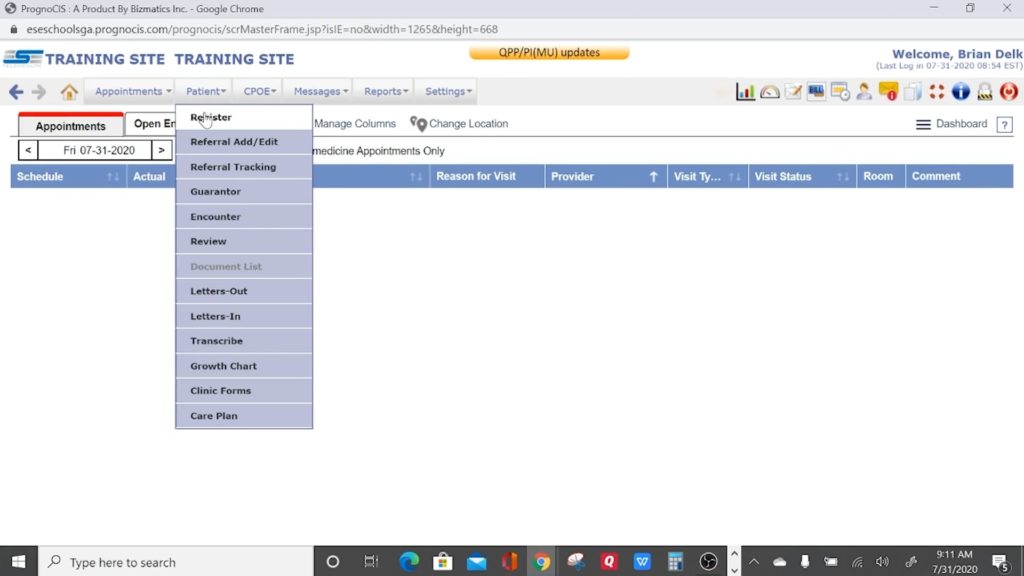
1) From the home page, on the menu bar, hover your mouse over “Patient,” and click “Register.” The Patient Info dialogue box will appear.
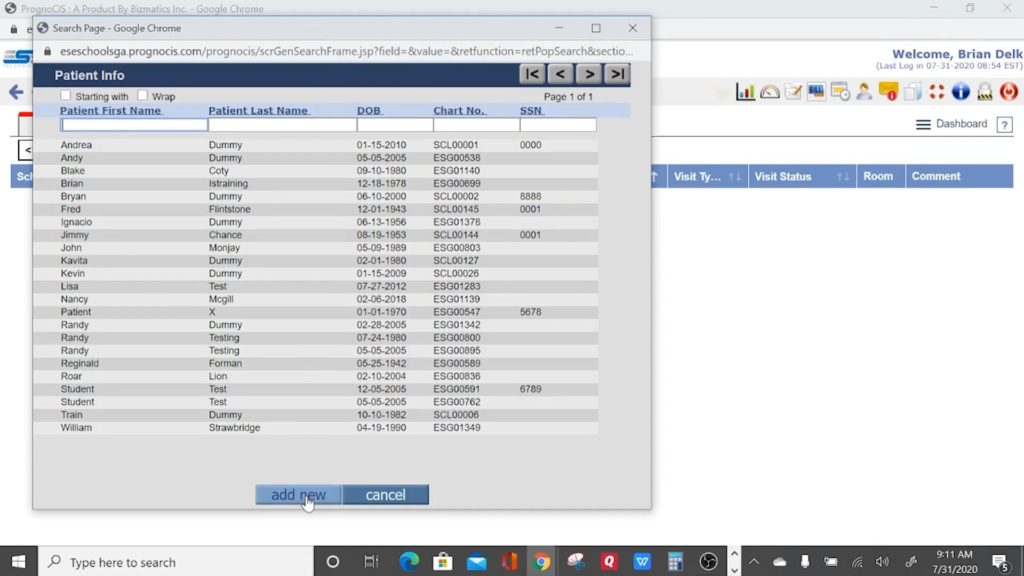
2) Click “add new” at the bottom to go to the Patient Register page.
3) There are five sections on the Patient Register page that must be filled: Patient Details, Address, Contact, Other Info., and Billing Info.
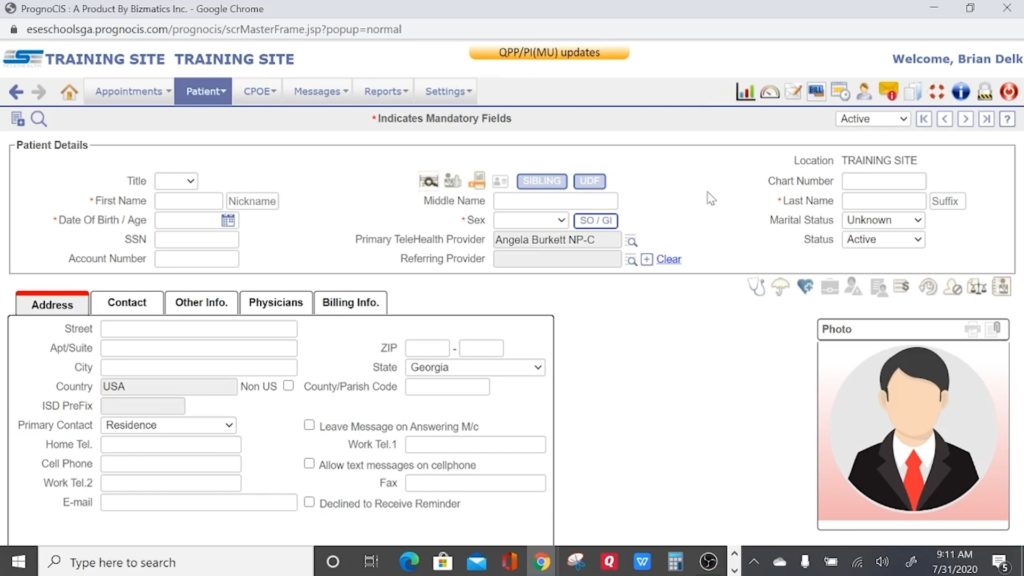
Here are the fields required for Patient Details (they have asterisks next to them):
- First Name
- Last Name
- Date Of Birth / Age
- Sex
- Sexual Orientation / Gender Identity (SO / GI)
You may leave whichever Primary Telehealth Provider is listed for the patient. The ESE Staff will determine which provider can see the patient once an appointment is scheduled.
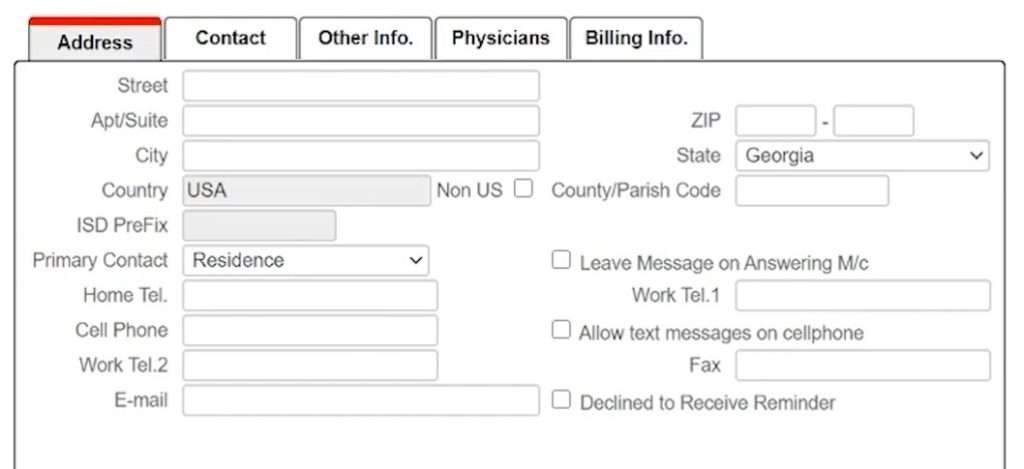
4) On the “Address” tab, please fill out everything to the best of your ability. Everything is required except the three checkboxes at the bottom right. Make sure Street, City, ZIP, Cell Phone, and E-mail are filled out. PrognoCIS will not let you move on if those fields are not completed.
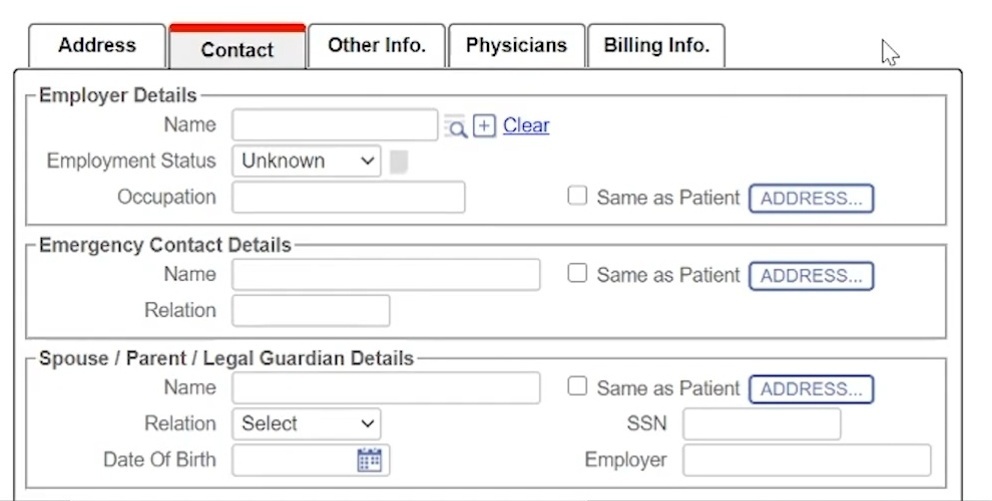
5) On the “Contact” tab, please fill out all three sections.
6) On the “Other Info.” tab, Pref. Language and Nationality is required. Driver’s License No. and Religion are not required. Race and Ethnic Group are not required, but when you save the patient’s details, PrognoCIS will ask if you’d like to proceed with or without adding those fields.
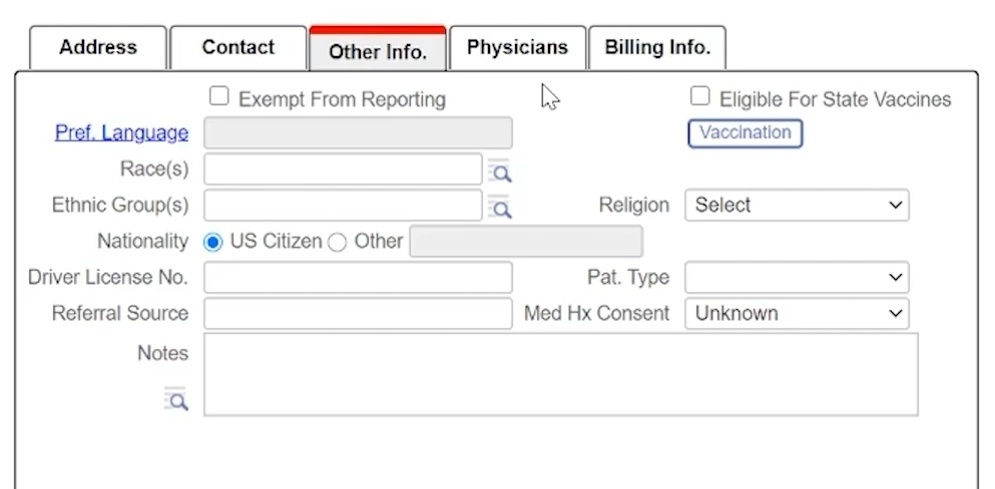
When you click “Pref. Language,” the Patient Communication Languages dialogue box will appear. Click the + next to “Language,” and the Language dialogue box will appear. Choose or search for the correct language, such as “English.”
There are many options loaded inside of the Ethnic Group dialogue box. Please be mindful: if a patient is White, you must choose “Not Hispanic of Latino” for their Ethnic Group.
7) On the “Billing Info.” tab, change the Guarantor according to who is being billed for appointments.
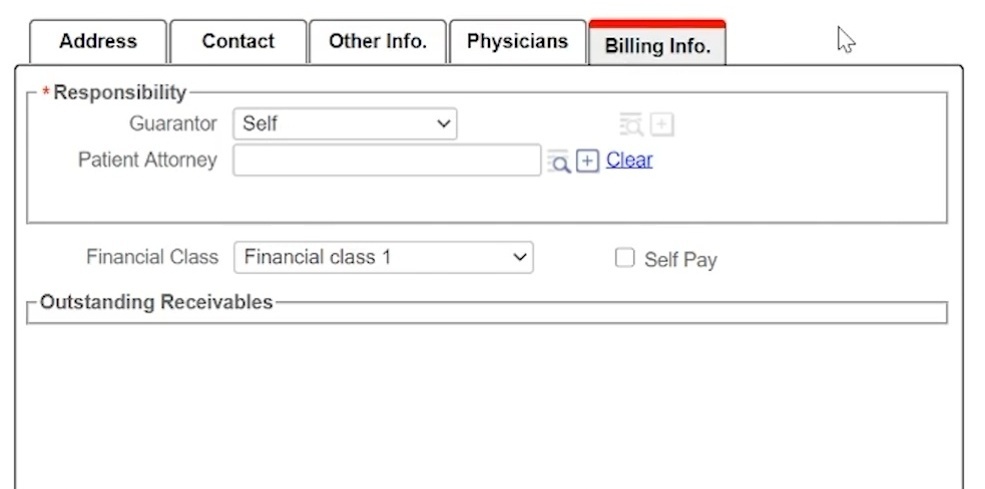
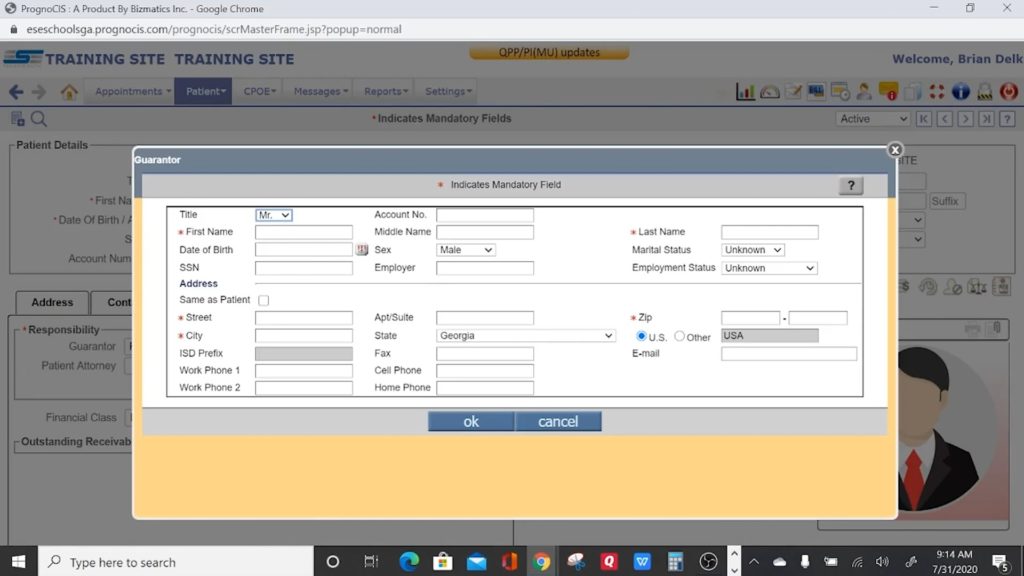
If “Self” is chosen, it will refer to the patient’s details. If any other option is chosen, such as “Parent,” the person’s information must be loaded. If the person is not loaded in PrognoCIS, click on the + symbol to the right of “Guarantor” to load their details. The Guarantor dialogue box will appear.
8) Once you are finished loading all of the patient’s details, click “Save” at the bottom of the page.
If you need any technical support, please call us at 877-755-2212, or email us at support@esetelehealth.com, and we will be more than happy to assist you.